

- 12
Jun
Streamline your recipe collection by combining recipes
Combining recipes is a powerful feature of Shop’NCook software that makes it easy to reuse recipes by combining them with other recipes, like recipes for sauce or dough that may be common to several preparations. Combining recipes makes it easier to manage your collection, as you only have to make changes in one place to update all the recipes using this preparation.
A recipe that includes other recipes looks as follows:
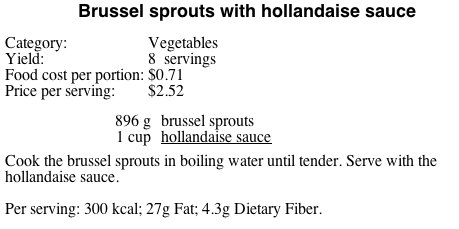
The ingredient “hollandaise sauce” is underlined to show that it links to a recipe.
If you click on Hollandaise sauce, the following recipe opens, correctly scaled to the required quantity:
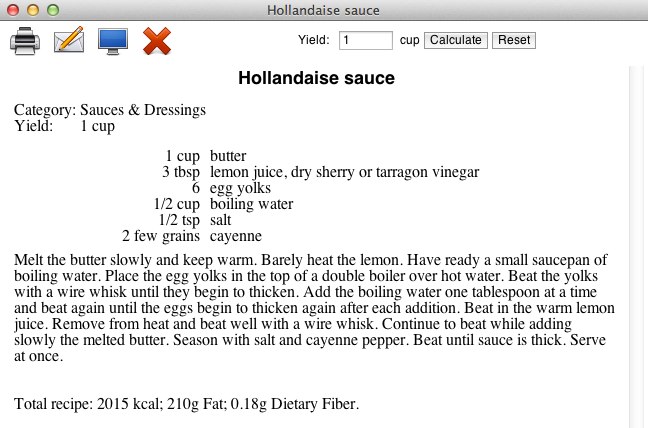
Also, the nutritional analysis of the Brussels sprouts recipe, the list of ingredients to add to the shopping list, as well as the cost estimate include the ingredients of Hollandaise sauce.
List of ingredients:

Nutritional analysis:

Costing:

How to combine recipes
Now, how do you link an ingredient to a recipe and include its ingredients in the list in this cool way? The good news is… you don’t have to do anything to combine recipes! An ingredient is automatically linked to a recipe when they share the same name.
There are however a few things you need to know to combine recipes successfully:
- The ingredient’s name must be exactly the same as the recipe’s.
- The main recipe and linked recipe must be in the same cookbook.
- If an item of same name exists in the database of grocery items, the ingredients will be linked to the grocery item instead of the recipe.
- If the quantity of the ingredient is specified, Shop’NCook must know how to scale the corresponding recipe to yield this quantity (see below).
- A recipe cannot include another recipe that includes itself, i.e. if recipe A includes recipe B, then recipe B cannot include recipe A. (Anyway, unless you try to crash the software, why would you do such a thing!?)
When recipe linking goes wrong, point 4 is the most likely culprit. It can be usually fixed by specifying a yield for the recipe. For example, the Brussels sprouts recipe above calls for 2 cups of Hollandaise sauce. If the yield of the Hollandaise sauce recipe was not specified, Shop’NCook could not have linked to it, because it wouldn’t have known how to scale it to yield 2 cups. Without the yield information, the software does not know which quantity of the recipe is required.
Alternatively to the yield, you can also input the number of servings of the recipe and then link to it by specifying a number of servings for the corresponding ingredient.
Example:
1 serving of Hollandaise sauce
A third way of specifying the quantity of an ingredient linking to a recipe is by leaving the quantity empty or inputting a number.
Examples:
Hollandaise sauce
1/2 Hollandaise sauce
The first example corresponds to the whole recipe as input, the second one corresponds to half the default quantity of the recipe.
That’s it for recipe linking. Have fun with combining recipes!
For more information on recipe linking, see also the online help.
Mathilde,
Superb function. Another example of the versatility and genius of Shop N’ Cook. I love it.
Patrick
Thanks for this but I’m still stuck. It won’t give me the option of including another recipe as an ingredient unless I save it as a bespoke menu item. What am I doing wrong?
Mary,
You have to make sure you add the ingredients on the Recipe tab, and not on the Ingredients tab. Then when you switch over to the Ingredients tab, your ingredients are automatically linked by the software to a suitable grocery item or recipe.
Tremendous program, just started using it and I love it. Looked for a long time for a program that will work with my mac OS, and yours is the one that fits my needs. many thanks. I also have a suggestion for future upgrades, if it would be possible for you to allow scaling of the images imported into the program and for the type to wrap around the image. what do you think?
best regards, yareb.
Thank you for the suggestions! I will think about it when I work on the next release.
I just got the software this week since I was unhappy with the fact that the program I was using before was not mac compatible and I hate the viruses coming with the double system on my mac. I have been using it for about a week and I am in love with your program – it is above and beyond any other program I used before! keep the great job Mathilde – I will definitely recommend the software to my fellow chefs.
Thank you!
Wild Honey has been using this software 6 years. It keeps getting better. Thank you.